
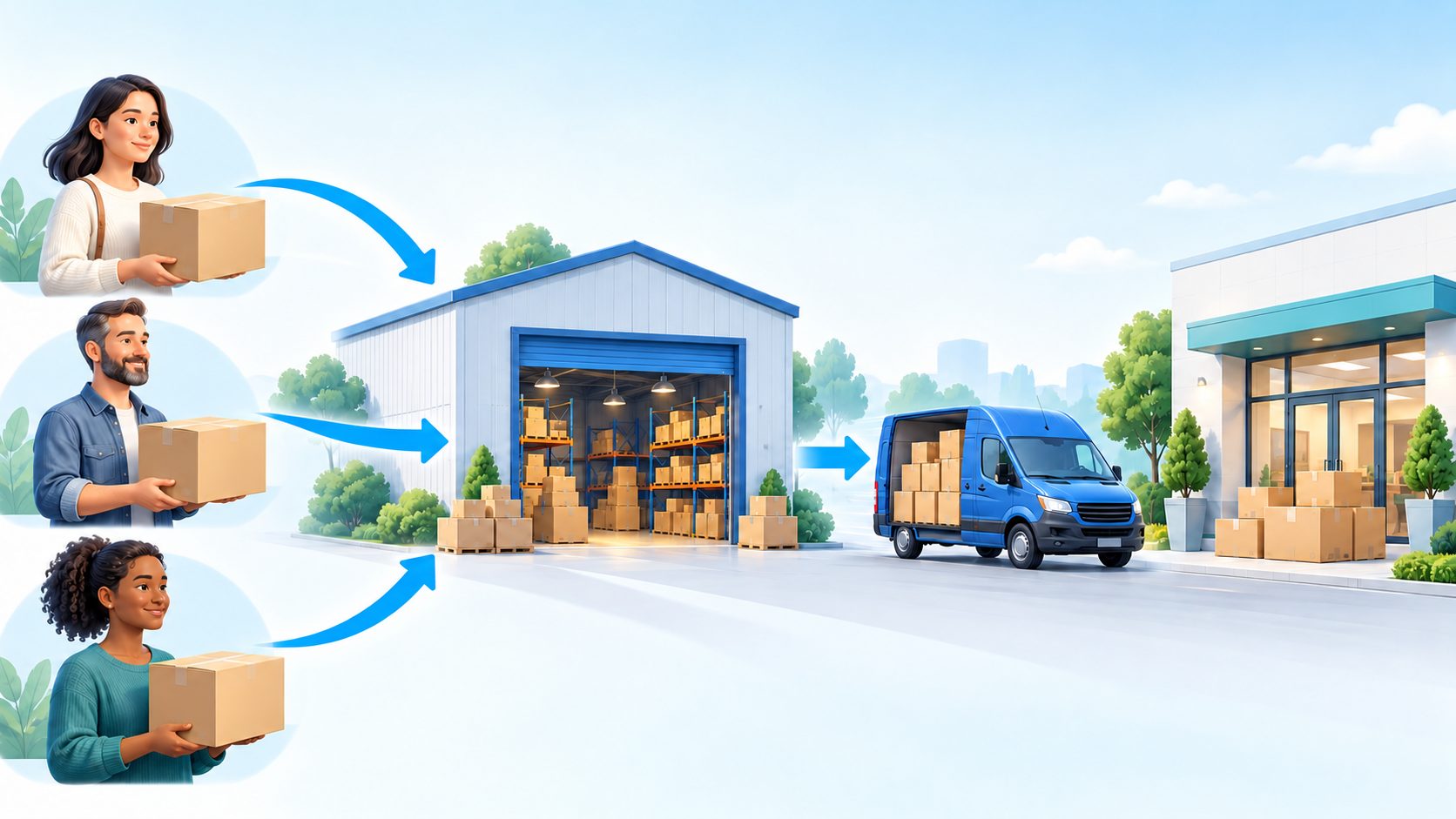
Learn how to create or join a ShipVida Shipping Group, link your warehouse parcels and submit your own shipping order once the group reaches its target weight. This illustrated guide covers joining by number, searching public groups, selecting the leader's shared delivery address, paying after packing and confirming pickup after collection. It also answers common questions about unavailable parcels, fees and changing an order.
ShipVida Shipping Groups lets customers organize parcels for the same destination and shipping channel. The leader selects one shared recipient address, while each member links their own parcels, submits their own shipping order and pays after packing.
Before you start: each member needs their own account. If you shop independently, send purchases to the warehouse address shown in your account and register a parcel pre-alert. Check your Warehouse Parcels after arrival. Agree with the leader on the destination, channel, shared address, deadline and collection arrangements. Ask ShipVida online customer support if you are unsure whether the channel accepts your goods.
New to forwarding? Read the complete international parcel forwarding guide.
Step 1: Open Shipping Groups
Sign in to ShipVida and open Shipping Groups in your account menu. You can also go directly to Shipping Groups.
The top of the page has three options: Join by Number, Find Group and Create Group. If a leader has already organized a suitable group, follow Step 3. If you want to organize one yourself, follow Step 2.
Step 2: Create a group as the leader
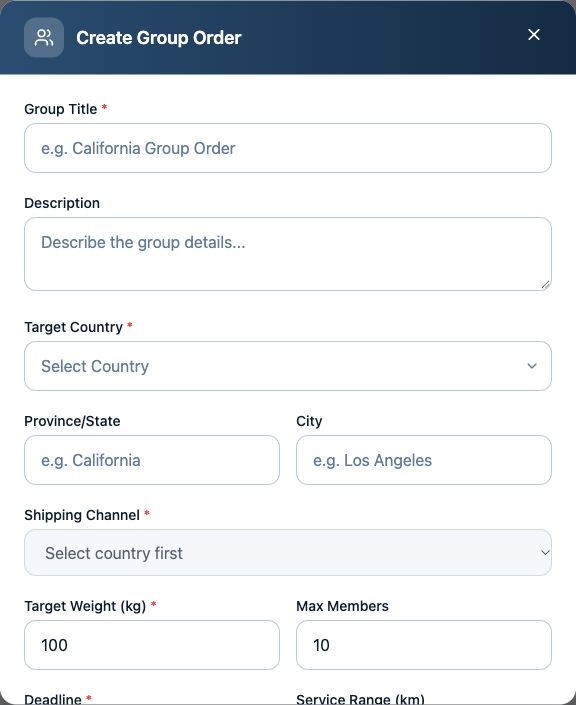
Click Create Group. Enter a clear Group Title and use Description to explain the destination and collection arrangements. Select Target Country, then choose an available Shipping Channel. Add the province/state and city where appropriate.
Set the Target Weight (kg), Max Members, Deadline and Service Range (km) to suit your plans. The target refers to the total weight of parcels linked by the whole group. The leader counts as a member.
Select the group's Recipient Address from your address book. If necessary, use Add New Address first. This is the shared delivery address used for members' shipping orders, so check the recipient, contact details and complete address carefully.
Choose whether to enable Public Group and Requires Approval, then click Create Group. Share the resulting group number with the people you want to invite. A public group can be found through the public-group search; approval lets the leader review joining requests.
The leader must also link their own parcels and submit their own order after creating the group.
Step 3: Join an existing group
With a group number: click Join by Number, enter the complete number shared by the leader and click the search icon beside the input. Check the destination, channel, deadline and collection arrangements, then click Join Group.
Without a group number: click Find Group. In Find Public Groups, filter by country, province/state or city, search and choose a suitable available group. Confirm the shared address and collection arrangements with the leader before proceeding.
If approval is required, check My Applications and wait for the leader. A pending applicant is not yet an approved member. Joining successfully does not create a shipping order. New members can join only while recruitment is open, there is space and the deadline has not passed.
Step 4: Link your warehouse parcels
Open Group Details and find My Parcels. Click Link Parcel or Add Parcel, select your available parcels and click Link … selected parcels.
Only eligible parcels belonging to your account appear here. Parcels not yet processed into the warehouse, already in another group or submitted in an order may be unavailable. Check Warehouse Parcels if one is missing. After linking, review your parcels and weight and the group's Weight Progress.
Step 5: Submit your own order when the weight target is reached
Wait until all the parcels you want to send have arrived and are linked. When the entire group reaches its target total weight and your order is eligible, click Submit Order.
Review your parcels, shared recipient address and Order Summary, then click Confirm Submit. Each member, including the leader, submits separately. Once submitted, you cannot add or unlink parcels or leave the group, so check carefully first.
Your order enters Pending Packing. A full member list does not mean the weight target is reached. The deadline does not automatically create orders or dispatch parcels.
Step 6: Check the packed order and pay
Open Shipping Orders to follow your own order. After warehouse packing, check the final fee. When your order is Pending Payment, click Pay Now for your own order and complete the payment steps shown.
The Estimated Fee is a guide. Final charges depend on the destination, channel, group weight and your packed parcels. Follow your order's final fee, status and tracking updates.
Step 7: Collect your parcels and confirm pickup
The group uses the shared address selected by the leader. When the shipment arrives, arrange collection with the leader and use your own Pickup Code to identify your parcels. Keep the code safe.
After actually collecting your parcels, click Confirm Pickup when available. The button may be hidden until the order reaches an eligible status. Delivery to the shared address and personal collection are separate events; do not confirm collection early.
Frequently asked questions
1. Why is there no shipping order after I join?
Joining makes you a member. You still need to link your warehouse parcels, wait for the group's target weight and submit your own order.
2. Why is Submit Order unavailable?
Check your linked parcels, the group's total weight, whether you already submitted and whether the group status permits submission. Member count alone does not determine eligibility.
3. Can existing members add parcels after recruitment closes?
An existing member who has not submitted can link eligible parcels while the page permits it. Closing recruitment stops new members joining; submission still requires the target weight. Closure does not mean dispatch.
4. Can I add parcels or leave after submitting?
You cannot add or unlink parcels or leave after submitting your own order. Wait for your parcels to arrive and review them first. Contact online customer support for exceptional cases.
5. How do I compare group shipping costs?
Compare the channel, destination, total group weight and final order fee. There is no universal group discount or rate, and member count alone does not show whether it is cheaper.
6. Can the system deliver to each member's own address?
This flow uses one shared address selected by the leader. If you need separate delivery addresses, ask online customer support about suitable forwarding options before deciding to join.